We have installed a local LLM in our laptop and used it as a chat bot, and tried coding with it as well. All’s well and good, right? Well, not really. Our local LLM still lacks a fundamental ability: tool calls.
You see, when we downloaded the LLM from HuggingFace and installed it, it comes with just its own set of training data. Meaning the information it has is limited only to the data it was trained on. This isn’t very helpful to us if we want to get up to date information, for example, today’s top entries in Hacker News. The LLM needs to access the internet to get that information, and by its own, it won’t be able to do that.
Tools behave like how they are named: commands that LLMs can invoke in order for it to satisfy a request. Some examples are modifying the filesystem (like creating or editing files), accessing the internet, or even accessing third-party applications. Basically, you (or the code harness) provide the available tools, and the LLM decides when to use them.
Defining Tools
To begin, let’s install a more recent model compared to the previous articles. For this set up, we will use Qwen3 4B instead of Qwen2.5 8B. Installation is still easy if you have OpenVino set up:
optimum-cli export openvino `
  -m Qwen/Qwen3-4B `
  --task text-generation-with-past `
  --weight-format int4 `
  qwen3-4b-ov
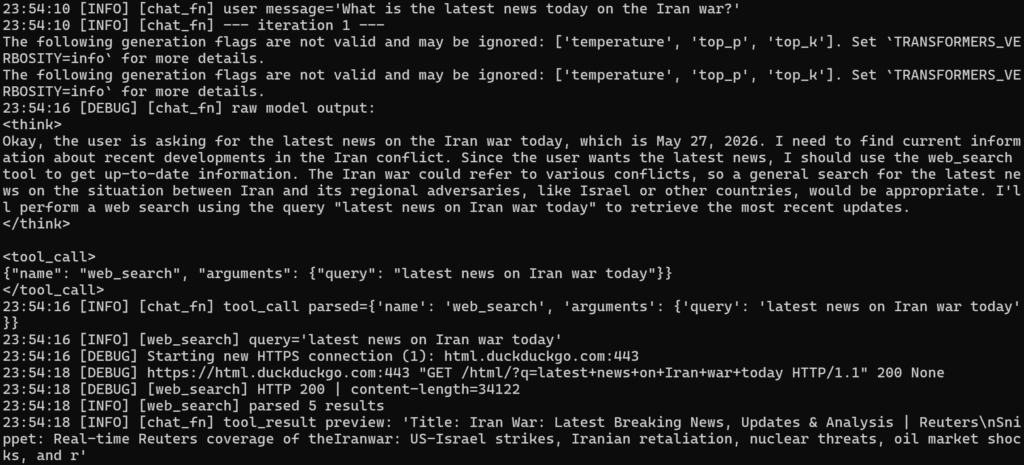
Another reason for using Qwen3 is that it has better support for tool calls. We give the LLM a set of tools that are available, and Qwen3 outputs a structured <tool_call> JSON payload (instead of plain text) so we can parse and execute the action that was intended by the LLM.
Here is an example of a set of tools that we can pass on to the LLM:
TOOLS = [
    {
        "type": "function",
        "function": {
            "name": "web_search",
            "description": "Search the web for current information.",
            "parameters": {
                "type": "object",
                "properties": {
                    "query": {
                        "type": "string",
                        "description": "The search query"
                    }
                },
                "required": ["query"]
            }
        }
    },
    {
        "type": "function",
        "function": {
            "name": "browse_url",
            "description": "Fetch and read the content of a web page.",
            "parameters": {
                "type": "object",
                "properties": {
                    "url": {
                        "type": "string",
                        "description": "The URL to fetch"
                    }
                },
                "required": ["url"]
            }
        }
    }
]
In the above example, we define two tools:
- web_search – for searching the web
- browse_url – for loading a URL and fetching its contents
Note that there are no other details in the tools schema apart from the description and the input parameters that the tool expects. For web_search, we expect the LLM to provide a search query, while for browse_url, we expect a URL string. An important point to drive here is that the LLM does not know how to execute the function, it just decides when to use a function or not.
Parsing
After defining the tools, we then pass this to the LLM together with the user’s prompt. For OpenVino and Qwen, we can pass this in the apply_chat_template function:
prompt = tokenizer.apply_chat_template(
     messages,
     tools=TOOLS,          # <-- add this
     tokenize=False,
     add_generation_prompt=True
 )
Now when you input a prompt to the LLM (like what is the latest news today?), it decides if it needs to use the tools that we provided. If a tool call is needed, Qwen returns this inside a <tool_call> tag:
<tool_call>
  {"name": "web_search", "arguments": {"query": "what is the latest news today?"}}
</tool_call>
Then the code harness parses it to extract the arguments to the tool call:
def parse_tool_call(text):
    match = re.search(r"<tool_call>\s*(.*?)\s*</tool_call>", text, re.DOTALL)
    if match:
        return json.loads(match.group(1))
    return None
Now that we have the tool name and the arguments, the code harness can then execute the tool call. Since the code needs to browse the web programmatically, it needs API support. For testing, we can use DuckDuckGo as they provide a free API, though a paid service can be faster and more reliable.
import requests
from bs4 import BeautifulSoup

def execute_tool(name, arguments):
    if name == "web_search":
        # Use DuckDuckGo or SerpAPI etc.
        resp = requests.get(
            "https://api.duckduckgo.com/",
            params={"q": arguments["query"], "format": "json", "no_html": 1}
        )
        data = resp.json()
        return data.get("AbstractText") or str(data.get("RelatedTopics", [])[:3])

    elif name == "browse_url":
        resp = requests.get(arguments["url"], timeout=10)
        soup = BeautifulSoup(resp.text, "html.parser")
        # Strip scripts/styles, return plain text truncated
        for tag in soup(["script", "style"]):
            tag.decompose()
        return soup.get_text(separator="\n", strip=True)[:3000]

    return f "Unknown tool: {name}"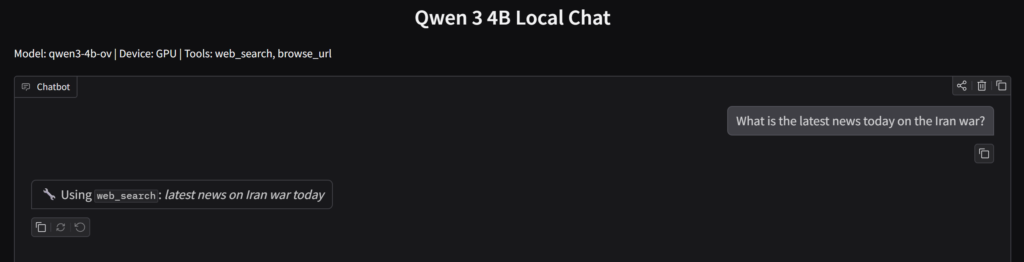
After the result of the web search is fetched, we pass it again to the LLM, indicating that this is a tool call result:
messages.append({"role": "assistant", "content": raw_model_output})
messages.append({
    "role": "tool",
    "name": tool_name,
    "content": tool_result
})
Looping
Once we send the tool result to the LLM, our work isn’t done yet! The LLM may respond with the answer in plain text, or it could also answer with another tool call. For example, it can do a follow-up web search as the initial results are not yet satisfactory. Because of this, we need to handle this agentic loop in the code as well:
def chat_fn(message, history):
    messages = build_messages(message, history)

    for _ in range(5):  # max tool call iterations
        raw = yield from generate_once(messages)  # your existing generation logic

        tool_call = parse_tool_call(raw)
        if not tool_call:
            break  # plain response, we're done

        yield f"🔧 Calling `{tool_call['name']}`…\n"

        result = execute_tool(tool_call["name"], tool_call["arguments"])

        messages.append({"role": "assistant", "content": raw})
        messages.append({
            "role": "tool",
            "name": tool_call["name"],
            "content": result
        })
In our example, we limited the number of loops to just 5 in order to prevent the LLM from calling tools until it runs out of tokens. This may or may not be enough depending on your use case.
Web-aware Chatbot
A full sample file of a Gradio chat app with web browsing tool enabled can be found here: local_llm_chat_browser_tool.py. Some of the key methods in the file:
tool_web_search– this expands on our example method above, and formats the page data to include the page title and snippet (if available)tool_browse_url– fetches a page’s contents, but also implements truncating the page body to ensure we don’t unnecessarily overload the LLM’s context windowparse_tool_call– tries to parse the tool call from an LLM’s response. It supports two methods: if the JSON is inside a<tool_call>tag, or inside a markdown delimiterfilter_streaming_text– LLMs can emit text continuously rather than returning a result when the answer is complete (streaming). This can cause some issues if the LLM is still in “thinking” mode and then it hits the maximum output token limit. Parsing just by<think>tags will not work if it is not properly paired with a closing tag. In this case, we try to clean up the “thinking” output so it is not included in the final result.chat_fn– the main agentic loop. It limits the number of loops toMAX_TOOL_ITERATIONSso it does not handle tool calls indefinitely.
As you can see, this is just a simple Python app, and it will not be able to handle all cases gracefully. Additional considerations may include:
- Handling additional tool calls beyond search and parsing the HTML body
- Balancing between the number of tool call loops and having a good enough result from the LLM
- Updating the
parse_tool_callmethod for other models (which can have different ways of handling tool calls)
This again illustrates the point that the functionality and usability of an AI application is only as good as the harness around LLMs.