Alibaba recently released Qwen Image 2.1, an image generation model that can run with just 7B parameters. In previous articles we explored how to make an AI chatbot and code harness using local LLMs, running on an Asus Zenbook. At 7B parameters, Qwen Image 2.1 is perfect for adding image generation capability to the laptop. My laptop has an Intel Core Ultra (Lunar Lake) processor with integrated Arc 140V graphics and 32GB of RAM, shared between the CPU and GPU.
As with the previous articles, we will try to install Qwen Image using the OpenVINO toolkit and optimum-cli:
optimum-cli export openvino `
  -m Qwen/Qwen-Image-2.1 `
  --weight-format int4 `
  qwen21-image-7b-ov
However, if you do not keep your OpenVINO installation up to date, you will find that this command no longer works due to incompatibilities with the library dependencies.
Updating OpenVINO
Since Qwen Image 2.1 is a recent model, we also have to update the libraries used by the model converter. We need to ensure that the diffusers and optimum library versions are both fully compatible with the local model we are installing.
The simplest way is to install using Hugging Face’s GitHub repo, but first, you will need to have Git on your Windows machine (note that all commands here are in PowerShell):
winget install --id Git.Git -e --source wingetClose PowerShell and re-open it so that Git is now included in your PATH. Now we can install the compatible Optimum libraries from Hugging Face.
python -m pip install -U nncf `
  "git+https://github.com/huggingface/diffusers.git@main" `
  "git+https://github.com/huggingface/optimum-intel.git@main"
Note: if you encounter an error about optimum-onnx, you can uninstall that as this is not needed for Qwen Image to work:
python -m pip uninstall -y optimum-onnxNext, we install the latest (as of this writing) version of OpenVINO:
python -m pip install -U --pre `
  "openvino==2026.5.0.dev20260919" `
  "openvino-tokenizers==2026.5.0.0.dev20260919" `
  "openvino-genai==2026.5.0.0.dev20260919" `
  --extra-index-url https://storage.openvinotoolkit.org/simple/wheels/nightly
Model Conversion
Once the latest OpenVINO build is installed, we can now proceed with downloading the Qwen Image 2.1 model.
python -m optimum.commands.optimum_cli export openvino `
    --model Qwen/Qwen-Image-2.1 `
    --task text-to-image `
    --weight-format int4 `
    --group-size-fallback ignore `
    qwen-image-2.1-ov-int4
This command downloads the model and converts its weights to 4-bit integers. This is called weight-only quantization, which is necessary so it can run smoothly on our Zenbook laptop. A more powerful machine can run it in int8 or fp16, which will yield better results in the generated image.
Chat Interface
Similar to how we set up Qwen as a local chatbot, we can also use Gradio to make our image generation app. This simple app has three main features:
- Using a text prompt, generate the image using Qwen and display it in the chat.
- When you upload an image, use Qwen to make modifications using the chat interface.
- Succeeding messages will be used to further modify or refine the previous image in the chat.
The full Gradio app source code can be found here: https://gist.github.com/marvs/99eb715b43e6b3208f009d1234f258fc
To run it:
- Install Gradio if you do not have it:
python -m pip install gradio - Save
qwen_image_chat.pynext to theqwen-image-2.1-ov-int4folder - Run the Gradio app:
python qwen_image_chat.py - Optional: update the code to set
DEVICE = "CPU"if your machine does not have an Intel GPU (CPU results in much slower generation)
The app loads the model from optimum-intel‘s OVQwenImage21Pipeline into the Intel GPU. If you attach an image with your message, the app edits it. Otherwise, it edits the latest image in the chat, so you can keep editing the previous image. If there are no images in the chat yet, it generates a new one from your prompt.
A random seed is generated for the run and is sent to the model together with the image size and step count. true_cfg_scale is also set to 1.0, disabling the classifier-free guidance. This means the model runs once per step instead of two times (as we are not using a negative prompt). This makes the image generation faster.
Configuration
The generation step count determines the number of times the model passes through the image. This is one of the main factors in determining the quality of the output. Intel’s example sets this to 40, which is also the app default. A lower step count (like 20) makes generation much faster, but the result will likely have noise and unwanted artifacts.
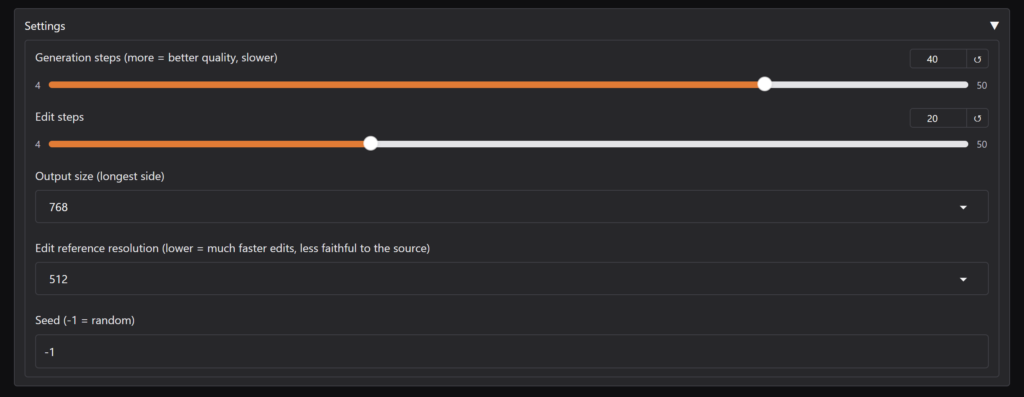
The sample app provides these main configurations:
- Generation steps – number of passes when creating a new image
- Edit steps – number of passes when editing an existing image. This is deliberately set lower by default as the model already has an existing image to work on.
- Output size – the app will generate a square image by default, but will keep the original proportions for uploaded images.
- Seed – randomized or you can provide a value. The generated filename also contains the seed.
Image Generation
Here is an example of how the app works when we ask Qwen to generate an image. We asked it to generate a cat image, for obvious reasons.
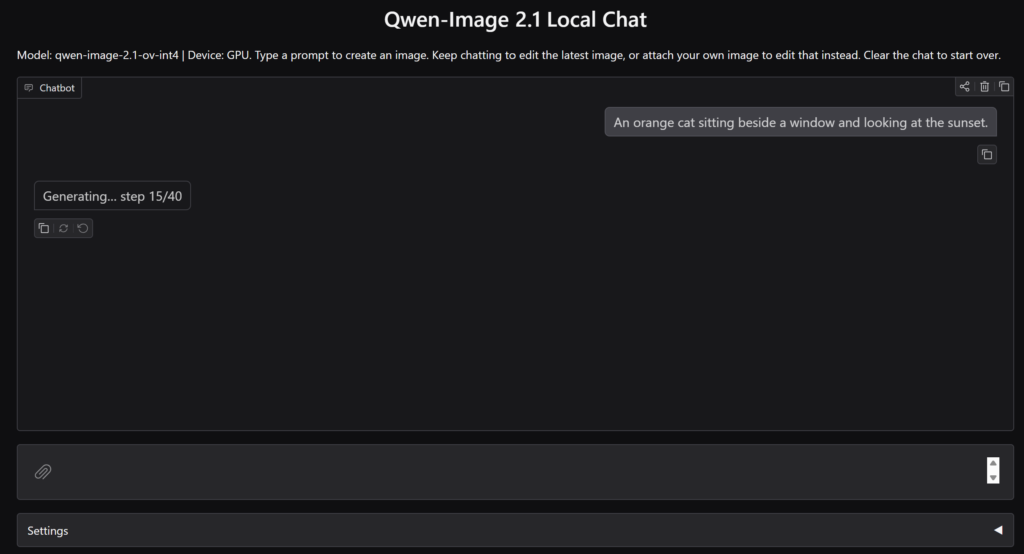
After 40 steps, which took about a minute, it generated this:
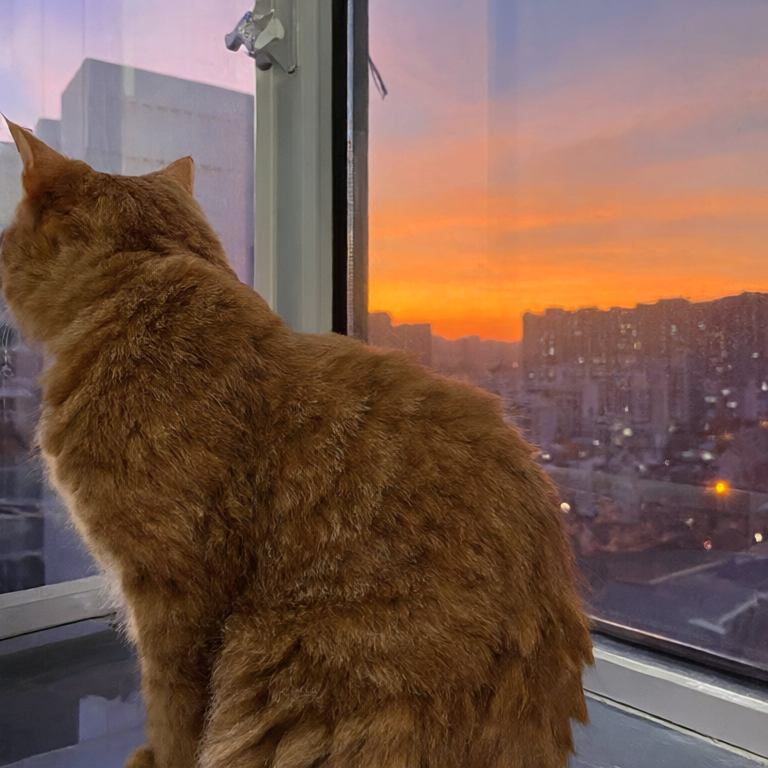
You can clearly see the details in the cat’s fur, as well as the color blending of the sunset on the horizon. This is already pretty impressive for a model running on a laptop.
Editing an Image
To celebrate the successful setup of our local Qwen Image 2.1, we then instructed the model to nudge the cat into a celebratory mood.
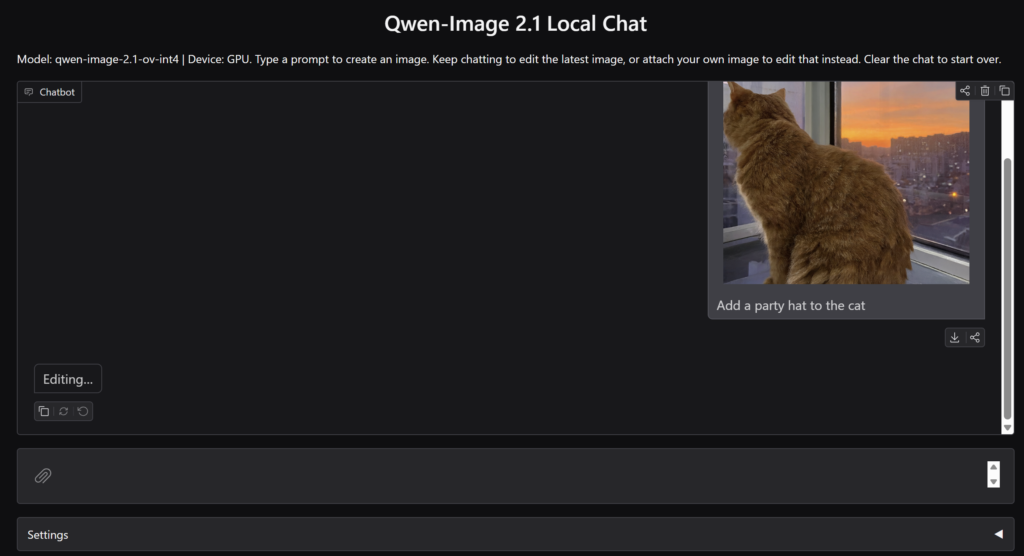
After 20 steps, this is what the model provided:
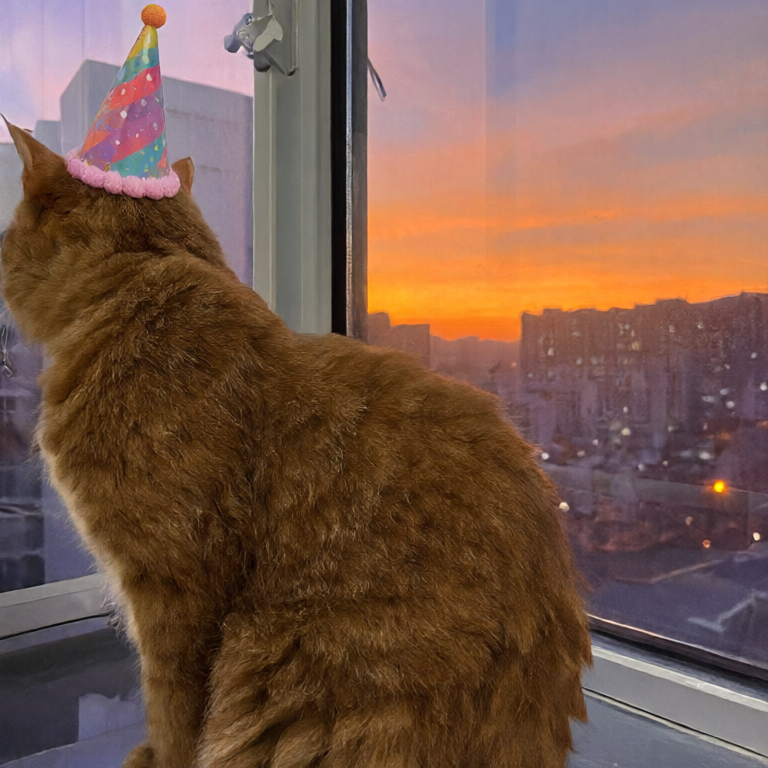
The details are preserved, and if you focus on the edge between the hat and the cat’s head, you can clearly see that the hat wasn’t just superimposed onto the image, it was integrated into it.
As additional examples, here are some of the images generated through our simple app:
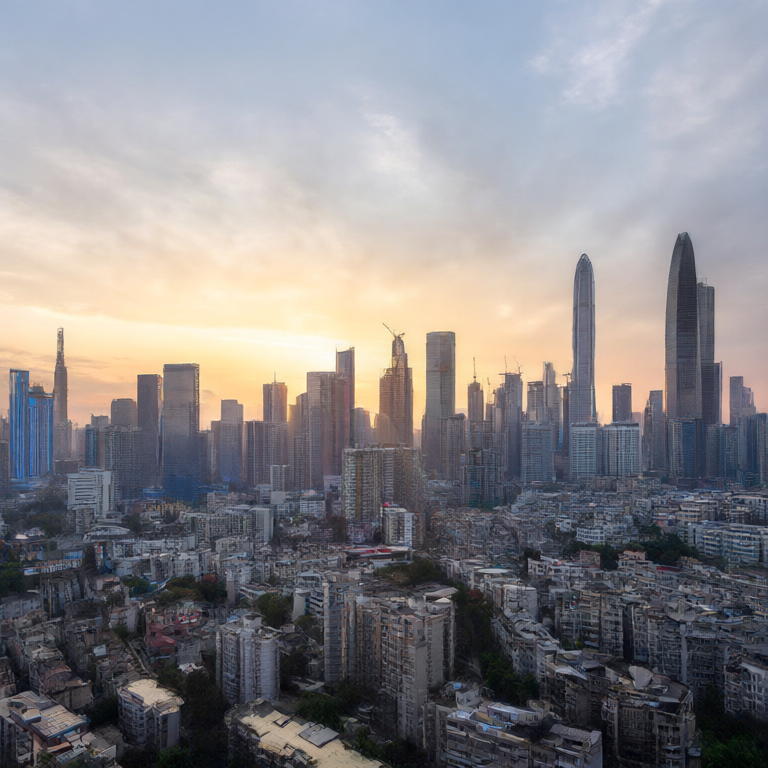
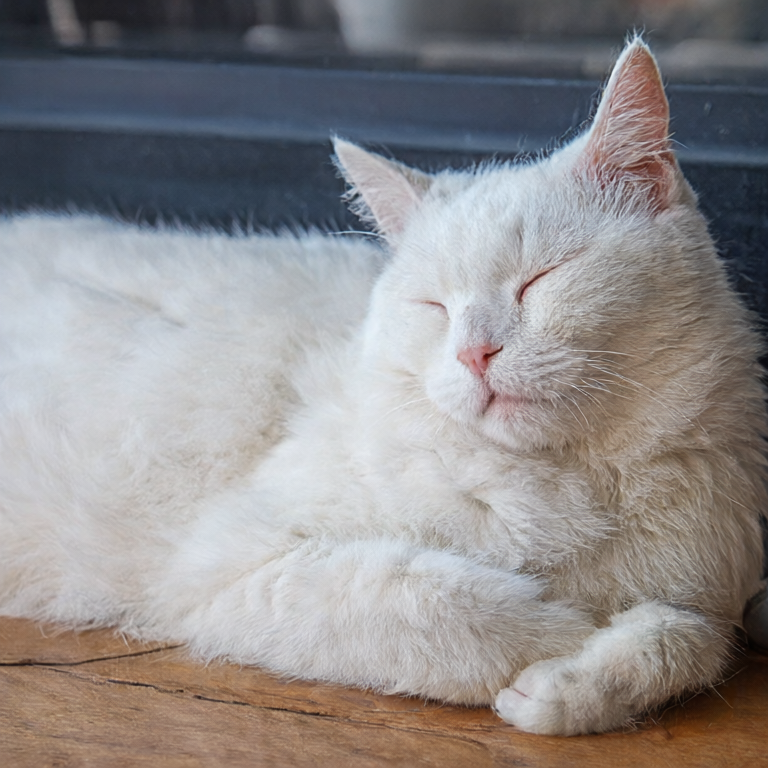
As you can see above, the skyline could use a higher step count (perhaps around 50) to make it more detailed, but the white cat image already looks great at 40 steps. I usually create images with hosted models like ChatGPT, so having this capability on my Intel laptop feels like magic. And since you control all aspects of the pipeline, everything runs locally. Your prompts and images never leave your machine!
A few months ago, I thought generating images with AI required powerful hardware that’s expensive or hard to get. Open-weight models like Qwen bring image generation to modest machines, and I’m excited to see what they can do as they become more capable and better optimized.